A hijacked browser is rarely subtle. Your homepage changes, searches go through a provider you have never heard of, and new tabs open on pages you did not ask for. The good news is that most hijackers are adware rather than malware, and removing them is methodical rather than difficult.
Signs worth taking seriously
- Your homepage or new-tab page changed and changes back when you fix it
- Searches are routed through a provider you did not choose
- Extensions you do not remember installing appear in the extensions list
- New tabs or pop-ups open on their own, often on ad-heavy pages
- Pages you trust suddenly carry ads that were never there before
How they get in
Almost always through something you installed on purpose. Free software installers frequently bundle extra offers, pre-ticked, on a screen most people click past. Choosing the custom or advanced option during installation and unticking the extras prevents the large majority of these.
The second common route is a browser extension that was harmless when installed and changed hands later. An extension with permission to read and change data on every site can begin injecting ads after an update, with no further action from you.
Removing one
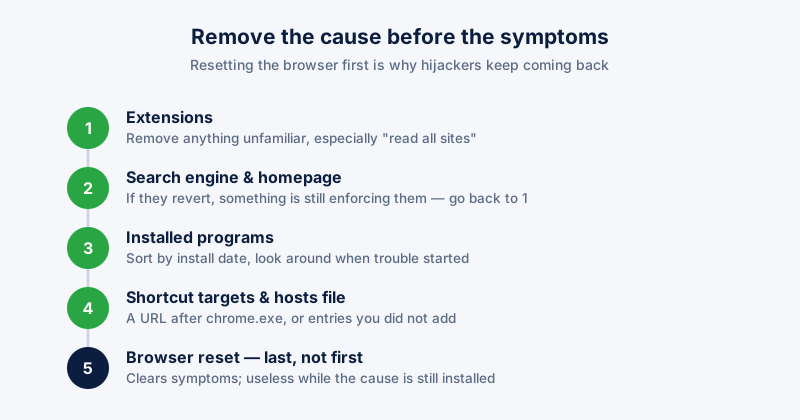
- Check your extensions first. In Chrome, open chrome://extensions. Remove anything you do not recognise or no longer use, paying particular attention to anything that can read data on all sites.
- Reset your search engine and homepage in Settings. If they revert, an extension or a program is still enforcing them — go back to step one.
- Check installed programs. Open Settings, then Apps, sort by install date, and look at what arrived around the time the trouble started.
- Check browser shortcut targets. Right-click the shortcut, open Properties, and make sure the Target field ends at chrome.exe with no URL appended after it — a URL there is a classic hijack.
- Run a scan. Windows Defender handles most of it; a dedicated adware scan catches things classed as unwanted rather than malicious.
Reset your browser as a last step rather than a first one. It clears the symptoms, but if the cause is still installed, everything returns within a day and you have lost your settings for nothing.
The hosts file, if nothing else worked
A more stubborn class of hijack edits the Windows hosts file to redirect specific domains, which survives a browser reset entirely. The file lives at C:\Windows\System32\drivers\etc\hosts and can be opened in Notepad running as administrator. Entries you did not add — particularly ones naming search engines or security vendors — are worth removing.
Staying clean afterwards
- Choose custom installation for free software and read the offer screens
- Review your extensions every few months and remove what you no longer use
- Be sceptical of extensions asking to read and change data on all sites
- Download software from the developer's own site rather than a download portal
ETA System Doctor includes a Shortcut Fixer for the appended-URL case, an Extension Manager for reviewing what is installed, and a Hosts File Integrity Guard that watches for entries appearing outside your own settings.