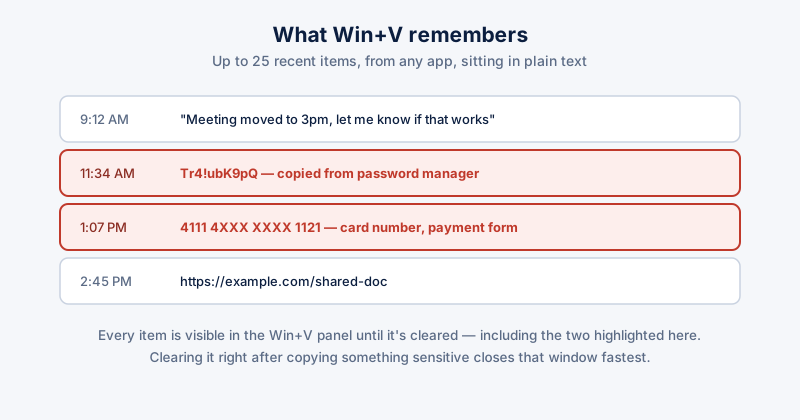
Since Windows 10's October 2018 Update, Windows has kept more than just the single most recent thing you copied. Clipboard history (Win+V) stores up to 25 recent items, and unless you know to check it, it's easy to forget it's running at all — including on someone else's PC you were using temporarily, or a screen you're about to share.
What actually ends up in there
Anything you select and copy or cut goes into the history, from any app — not just Ctrl+C in a browser. That includes passwords copied out of a password manager while it's unlocked, a card number copied from a payment form, a phone number, or a paragraph of a message you didn't end up sending. None of it is encrypted or hidden in the history view; press Win+V and it's all sitting there in plain text.
Clearing it
- Press Win + V to open Clipboard history
- Click the ⋯ (more options) menu on any single item to remove just that one, or
- Click Clear all at the top to wipe the entire history at once
This clears what's stored, but the feature itself keeps running and will start collecting again the next time you copy something. If you'd rather it not run at all, go to Settings → System → Clipboard and turn off Clipboard history entirely — you'll still be able to copy and paste normally, you just lose the multi-item history and the Win+V panel.
When this actually matters
- Before screen sharing or a support call — clipboard history isn't visible on screen by itself, but it's one tap away (Win+V) from anyone with momentary access to your keyboard
- On a shared or public PC — history from your session persists until it's cleared or the device restarts, depending on configuration
- Right after copying anything sensitive — a password, a one-time code, a card number — clearing it immediately after pasting closes the window where it's sitting in plain text longest
Clipboard history is separate from clipboard sync across devices (also under Settings → System → Clipboard, as "Sync across devices"). If that's turned on, whatever you copy can also show up on your other signed-in Windows devices — worth checking independently if you use more than one PC.
ETA System Doctor's Client Confidentiality Mode clears clipboard history along with pausing recent items and hiding sensitive folders in one click before a screen share or a client call, and can trigger the same routine automatically once your PC has been idle for a while — so it's handled without needing to remember Win+V in the moment.