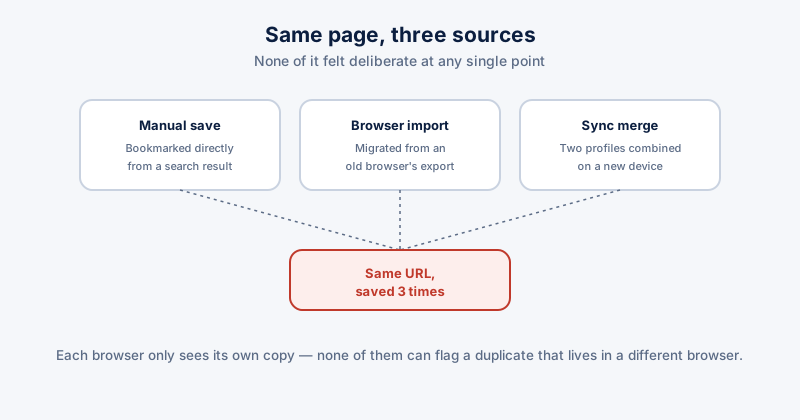
Bookmark bars accumulate duplicates in a way most people never quite notice happening — the same page saved once manually, then again after switching browsers and importing the old bookmarks, then a third time after browser sync merged two profiles together. None of it feels deliberate at any single point, but the cumulative result is a bookmarks bar that's stopped being useful for actually finding anything quickly.
How duplicates actually accumulate
- Browser-to-browser import. Moving from one browser to another and importing existing bookmarks, then later importing again from a backup, leaves two full copies of everything from before the switch
- Sync merging. Signing into browser sync on a new device sometimes merges rather than replaces the existing local bookmarks, doubling anything that existed in both places
- Saving the same page from different entry points — bookmarking an article from a search result, then again later from a shared link, with the URLs differing slightly enough (a tracking parameter, http vs https) that they don't look identical at a glance but point to the same content
Finding duplicates manually
- Open your browser's full Bookmark Manager (Ctrl+Shift+O in Chrome and Edge, Ctrl+Shift+B in Firefox) rather than just the visible bookmarks bar, since most duplicates hide in folders you don't look at often
- Sort or search by title — the browser's own bookmark manager search is usually enough to spot obvious repeats of the same page title
- Check folders that came from an import separately from ones you built yourself — imported folders are the most common source of a wholesale duplicate set
Two bookmarks with URLs that differ only by a tracking parameter (?utm_source=... or similar) or by http vs. https are still functionally duplicates even though the browser won't flag them as identical text — worth a manual second look at anything that looks close but not byte-for-byte the same.
A cleanup pass worth doing
- Delete the folder structure left over from an old import once you've confirmed nothing unique is buried inside it
- Consolidate folders that ended up split across your main bookmarks and an imported set covering the same topics
- Remove bookmarks to pages that no longer exist — dead links accumulate right alongside duplicates and are just as easy to overlook
Doing it across all three browsers at once
If you use Chrome, Edge, and Firefox on the same PC, each keeps a fully separate bookmark set with no cross-browser awareness — a page bookmarked in all three shows up as three unrelated entries to each browser individually, and none of them will ever flag it as a duplicate of something in a different browser.
ETA System Doctor's Duplicate Bookmark Finder checks across Chrome, Edge, and Firefox together rather than one browser at a time, catching the same-page-different-browser case that each browser's own bookmark manager has no way to see on its own.