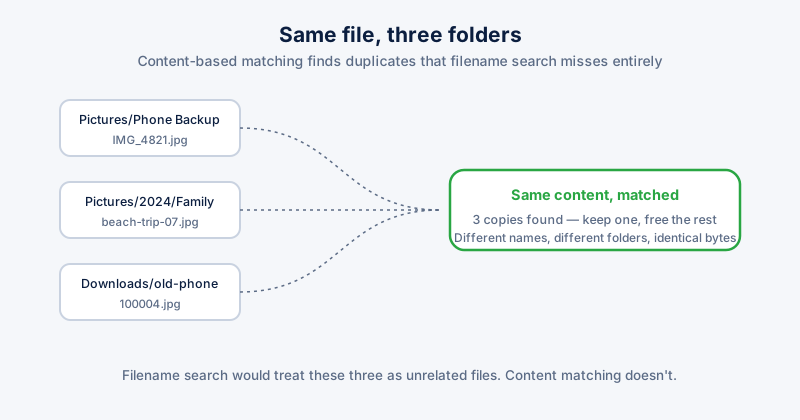
Windows.old and browser caches get most of the attention in disk-space guides, but for a lot of people the bigger, quieter offender is duplicate personal files — the same photo saved from three different phone backups, a document copied "just in case" and never deleted, an old project folder duplicated wholesale when a new one was started. None of it is system junk, which is exactly why it never gets cleaned automatically.
Why filename search doesn't find them
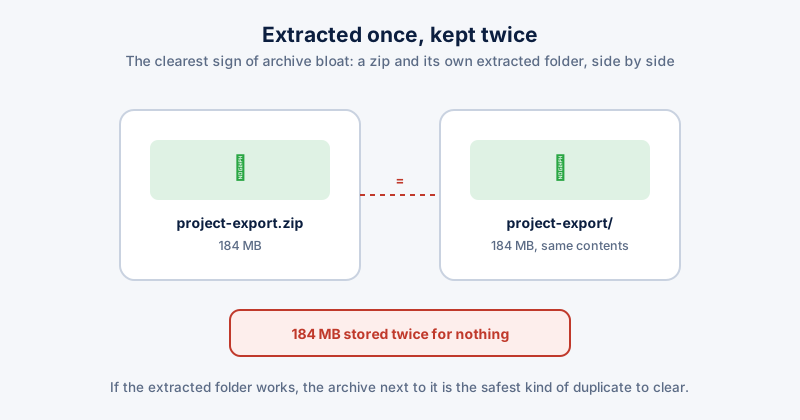
Searching for files with the same name misses the two most common ways duplicates actually happen: the same photo re-exported with a different filename by a phone backup app, and a folder copied wholesale where every file inside keeps its original name but now exists in two places. A real duplicate finder compares file content — usually via a hash of the file's bytes — so it catches matches regardless of what the files are called or where they live.
A safe process
- Scan your actual data folders — Documents, Pictures, Downloads, and any external drives — rather than the whole C: drive. System and program folders legitimately contain many identical small files by design, and flagging those as "duplicates" is noise, not savings.
- Sort results by size, largest first. A handful of duplicated video files or RAW photos will free up more space than hundreds of duplicated small documents.
- Review before deleting — look at the folder paths for each match, not just the filename, so you can tell which copy is the one you actually still use.
- Keep one copy in the location that makes sense (usually the most recently modified, or the one in your main working folder) and remove the rest.
Don't run a duplicate finder against a folder that's actively syncing with cloud storage (OneDrive, Google Drive, Dropbox) without checking first — deleting a "duplicate" that's actually the sync client's local copy can trigger a re-download or, in some configurations, a deletion on the cloud side too.
What looks like a duplicate but isn't
- Two photos that look identical but are a JPEG and a RAW version of the same shot — different file, different size, both potentially worth keeping
- Program files with identical names across different install folders — these are usually meant to be there and shouldn't be touched by a personal-file duplicate scan in the first place
- Versioned documents like Report_v1.docx and Report_v2.docx — same content in places, but the version history is often the point of keeping both
Beyond exact duplicates
Large, unrelated files are usually a bigger space win than duplicates once the obvious copies are gone — old ISO files, VM disk images, video exports you no longer need, and downloaded installers sitting in the Downloads folder long after the software was installed. Sorting a full disk-usage scan by size, rather than only searching for duplicates, tends to surface these in minutes.
ETA System Doctor's Duplicate & Large Files tool combines both passes — content-based duplicate detection across your personal folders, plus a size-sorted view of everything else large and unused — so you're not running two separate tools to cover what's actually taking up the space.