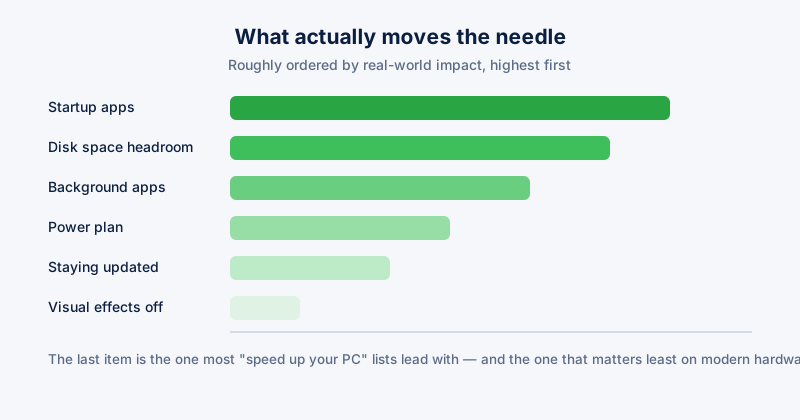
There's no shortage of "50 ways to speed up Windows" lists, and most of them bury the handful of changes that actually matter under dozens that don't. This is the short version, roughly in order of how much difference each one tends to make.
1. Startup programs
Every app that registers itself to launch at boot adds to the time between pressing the power button and having a usable desktop, and most of them don't need to run automatically at all. Open Task Manager (Ctrl+Shift+Esc), go to the Startup apps tab, and look at the "Startup impact" column Windows already calculates for you. Disable anything rated High that you don't need running the instant you log in — you can always launch it manually when you actually want it.
2. Free disk space, especially on an SSD
An SSD that's nearly full performs measurably worse than one with headroom — write speeds in particular degrade as free space shrinks, because the drive has less room to work with for wear-leveling and garbage collection. As a rule of thumb, keeping at least 10-15% of an SSD free preserves most of its performance; below that, things get noticeably slower even before you hit "drive full."
3. Background apps and services
Settings → Apps → Installed apps shows everything on your system — sort by size or look for apps you don't recognize or no longer use, and uninstall them. Fewer installed apps means fewer background processes, scheduled tasks, and startup entries competing for the same CPU and memory.
4. Power plan
Laptops in particular often ship set to Balanced or a manufacturer's custom power plan that caps CPU performance to save battery. If you're plugged in and want maximum responsiveness, Settings → System → Power & battery → Power mode, and set it to Best performance.
5. Windows Update — yes, really
Counterintuitively, staying current with updates tends to help more than it hurts. Performance regressions from updates get patched quickly, while an old, unpatched build accumulates its own bugs and misses driver and scheduler improvements Microsoft ships regularly. Falling badly behind on updates is a more common cause of slowdown than any single update introducing one.
What to skip
- Disabling visual effects and transparency — a real but genuinely marginal effect on modern hardware. Worth doing on a very old or low-spec machine; not worth the hassle on anything from the last several years.
- Registry "optimizer" tools that promise large speed gains — the registry is not where meaningful Windows performance problems live on modern versions, and aggressive automated registry edits carry more risk of breaking something than benefit.
- Reinstalling Windows as a first resort — effective, but disruptive, and the startup-apps and disk-space fixes above solve the actual cause in the large majority of cases without it.
If a PC that was fine yesterday is suddenly slow today, that's a different problem than gradual slowdown over months — check Task Manager's CPU and Disk columns first for one process pinned at 100%, rather than working through this whole list.
ETA System Doctor's Auto Speed Boost runs the startup-app and disk-headroom checks above in one pass and applies a performance power plan automatically, and its "Faster Boot, Every Time" tool manages startup apps with the same impact data Task Manager shows, without needing to dig through Task Manager's tabs by hand every time something new installs itself at boot.