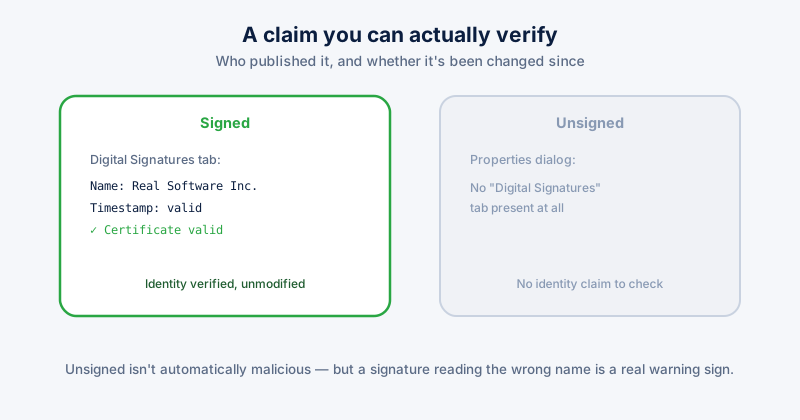
A digital signature on a Windows installer is a cryptographic claim, verifiable by Windows itself, about two specific things: who published the file, and whether it's been modified since that publisher signed it. Checking for one takes seconds and catches a meaningful category of risk before you ever run the file.
Checking a file's signature
- Right-click the installer file (.exe or .msi) and choose Properties
- Click the Digital Signatures tab
- If the tab doesn't exist at all, the file is unsigned
- If it exists, select the signature entry and click Details to see the certificate — check that the publisher name matches who you'd actually expect (the real software vendor, not an unrelated or generic-sounding name)
Windows SmartScreen also surfaces this automatically — a signed installer from a publisher with an established reputation runs without a warning, while an unsigned or newly-signed file often triggers a "Windows protected your PC" prompt. That prompt is worth reading rather than clicking through automatically, especially for software from outside the Microsoft Store or a vendor's own site.
What a valid signature actually tells you
- The file hasn't been tampered with since signing. Any modification after the fact — including malware injecting itself into a legitimate installer — invalidates the signature. This is the main practical protection it provides.
- Who published it, verified by a certificate authority. Not anonymous — a real identity stood behind the certificate used to sign it.
What it does not guarantee
A signature is not a safety certification. Signed malware exists — a stolen or fraudulently obtained code-signing certificate lets an attacker sign malicious software with what looks, to Windows, like a legitimate signature. A signature also says nothing about whether the software itself is well-behaved, free of bundled adware, or trustworthy in its actual behavior once installed — it only verifies identity and integrity, not intent.
- Unsigned software isn't automatically malicious — plenty of legitimate small, free, or open-source tools are unsigned simply because code-signing certificates cost money and the developer chose not to buy one
- Signed software isn't automatically trustworthy — verify the publisher name matches what you expect, and combine this check with actually knowing where you downloaded the file from
The practical rule
Treat an unsigned installer from an unfamiliar source with more caution than a signed one, and always check the publisher name on a signature rather than treating "it has a signature" alone as sufficient — a certificate reading a name you don't recognize, for software you expected from a well-known vendor, is a real warning sign worth stopping on.
ETA System Doctor's Install Size & Signature Check surfaces both an app's real install size and its signature status in one place, so you can review what's actually installed on your PC — including anything that arrived unsigned — without checking Properties on every executable individually.