Clearing the cache is the standard advice for a browser behaving oddly, and it often works. It is also frequently the wrong fix. This guide covers how to clear Chrome's cache on Windows, what you lose when you do, and how to tell whether the cache was the problem in the first place.
What the cache actually stores
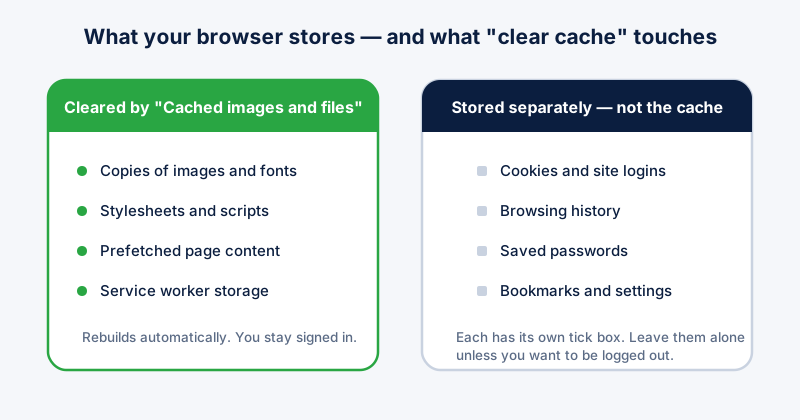
When you load a page, Chrome saves copies of the pieces that are unlikely to change from visit to visit — images, stylesheets, fonts, scripts. Next time you open that site, it reuses the local copies instead of downloading them again. That is why a site you visit daily feels faster than one you have never opened.
The cache is not your history, your cookies, or your saved passwords. Those are stored separately, which matters because Chrome's clearing dialog offers them together and it is easy to wipe more than you meant to.
Clearing the cache in Chrome
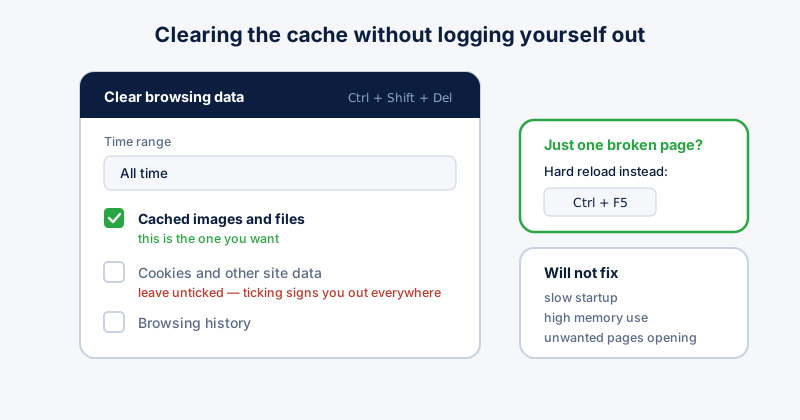
- Open Chrome and press Ctrl + Shift + Delete. This opens the Clear browsing data dialog directly.
- Switch to the Advanced tab if you want to see every category separately.
- Set the time range. "All time" clears everything; "Last hour" is usually enough if a page broke just now.
- Tick "Cached images and files". Leave "Cookies and other site data" unticked unless you want to be signed out of sites.
- Click Clear data. Chrome may feel slower on the next visit to each site while it rebuilds the cache — that is expected.
If you only want to fix one misbehaving page, try a hard reload first: hold Ctrl and press F5. That bypasses the cache for that page alone and leaves everything else intact.
When clearing the cache helps
- A page shows an old version of itself after the site was updated
- A site's layout is visibly broken — overlapping text, missing images, unstyled content
- A web app fails to load after an update, often with a blank screen
- You are low on disk space and the cache has grown to several gigabytes
When it does not help
If Chrome is slow to start, using a lot of memory, or opening pages you did not ask for, the cache is almost certainly not the cause. Those symptoms usually point at extensions, a large number of open tabs, or a changed search engine and homepage. Clearing the cache will not touch any of those, and you will lose the speed benefit for nothing.
It is also worth knowing that Chrome manages the cache size on its own. It does not grow without limit, and a large cache is not itself a fault. Clearing it on a schedule for its own sake mostly just makes your browsing slower.
Doing it across several browsers
If you use Chrome, Edge, and Firefox side by side, each keeps its own cache in its own location, and each has its own dialog to clear it. ETA System Doctor's Browser Cleanup handles all of them in one pass and lets you keep cookies for sites you are signed into, so you are not logged out everywhere as a side effect.