DNS hijacking redirects the lookups that turn a domain name into an address — quietly enough that the browser bar still shows the site you meant to visit. It's used to push traffic to phishing pages, inject extra ads, or block security software from reaching its own update servers. Knowing how to detect DNS hijacking early is the difference between a non-issue and a compromised login.
Check which DNS server you're actually using
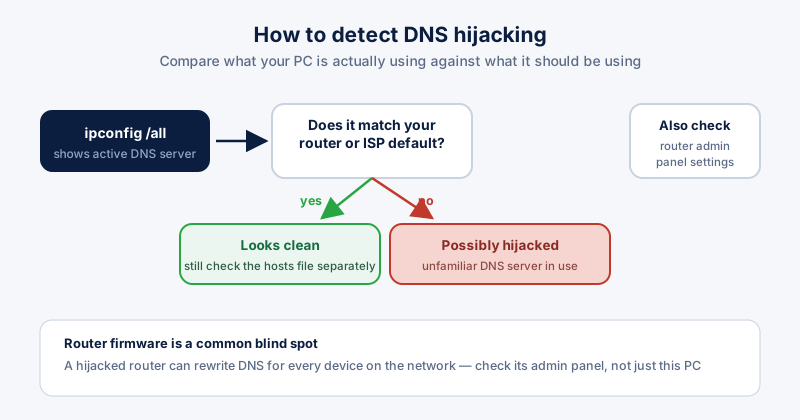
Open Command Prompt and run "ipconfig /all" — look for the "DNS Servers" line under your active network adapter. Compare that address against your router's default (usually printed on the router itself or listed in its admin panel) or your ISP's published DNS servers. An address you don't recognize, especially one that changed without you touching any settings, is the clearest sign something rewired it.
Check your hosts file too
DNS settings aren't the only place a redirect can live — the hosts file overrides DNS entirely for any entry it contains, for every application on the machine. Our guide on performing a hosts file integrity check covers exactly what to look for there in about two minutes.
Check your router, not just your PC
A hijacked router rewrites DNS for every device connected to it, not just one PC — which is worse and easier to miss. Log into the router's admin panel (usually 192.168.0.1 or 192.168.1.1) and check the WAN/DNS settings match what your ISP actually issued. Update the router's firmware while you're in there; outdated router firmware is a common way attackers get in to make this change in the first place.
Signs you may already be hijacked
- Familiar sites look slightly different, or load noticeably slower than usual
- Unexpected certificate warnings on sites that never showed them before
- New ads or pop-ups appearing on sites that don't normally carry them
- A search engine you didn't set as default suddenly loading instead
If you find one
- Change the DNS server back manually, or reset the router to restore ISP defaults.
- Change your router's admin password — the default one is how most router hijacks happen.
- Update the router's firmware to the latest version.
- Run a full malware scan on the PC, since local malware can rewrite DNS settings just as easily as a compromised router.
- Flush the DNS cache afterward with "ipconfig /flushdns" so nothing stale lingers.
None of this takes long, and checking twice a year costs you a few minutes against redirects that are built specifically to go unnoticed.