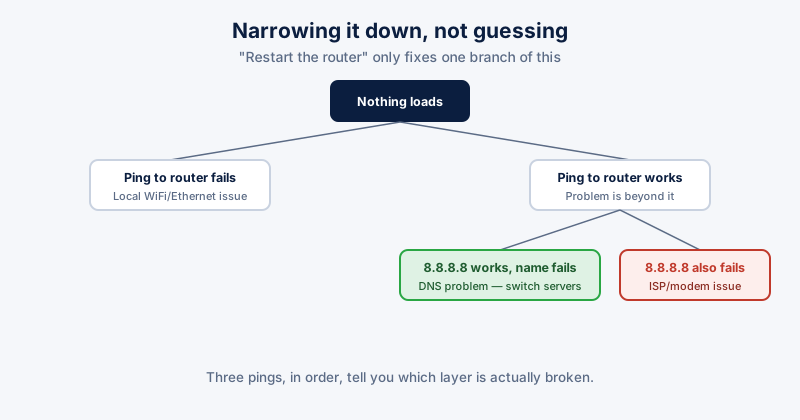
"The internet is down" covers several genuinely different problems that happen to produce the same symptom: nothing loads. Restarting the router fixes some of them and does nothing for others, which is why it works about half the time as a default first move and leaves people stuck the rest.
Step one: is it just this device, or everything?
Check a second device on the same network — a phone on WiFi is enough. If it also can't connect, the problem is upstream of your PC (router, modem, or ISP). If only your PC is affected, the problem is local to that machine — a network adapter issue, a bad DNS setting, or a driver problem, not the connection itself.
Step two: local network or beyond it?
Open Command Prompt and ping your router's own address (commonly 192.168.1.1 or 192.168.0.1 — check yours via ipconfig, listed as "Default Gateway").
- Ping to the router fails — the problem is your local WiFi or Ethernet connection, not the wider internet. Check the physical connection, or try reconnecting to WiFi.
- Ping to the router succeeds, but nothing loads in a browser — your device can reach the router fine; the problem is beyond it, either the modem, the ISP's connection, or DNS specifically.
Step three: is it DNS specifically?
DNS translates a site name into the numeric address your PC actually connects to — a DNS problem produces the specific symptom of every website failing to load by name while the connection itself is otherwise fine.
- Open Command Prompt and run: ping 8.8.8.8 (Google's DNS server, referenced by its numeric address directly, bypassing name resolution)
- If that succeeds but ping google.com fails, the problem is DNS resolution specifically, not your connection
- Fix: Settings → Network & internet → your connection → Edit DNS settings, and switch to a public DNS provider (1.1.1.1 or 8.8.8.8) instead of your ISP's default
A DNS problem can also be a symptom of hosts-file tampering — if switching DNS servers doesn't help and only specific sites are affected rather than all of them, that's worth checking too.
When it's genuinely the ISP
If ping to your router succeeds but ping to any external address (8.8.8.8 included) fails, the problem is between your router and your ISP — a modem issue, an outage, or a service disruption on their end. Restarting the modem (not just the router) resolves a meaningful share of these; beyond that, it's a call to your provider, not something fixable from your PC.
ETA System Doctor's Internet Connectivity Diagnostics runs this same router-then-DNS-then-ISP sequence automatically and tells you specifically which layer is failing, rather than leaving you to run ping commands by hand and interpret the results yourself.