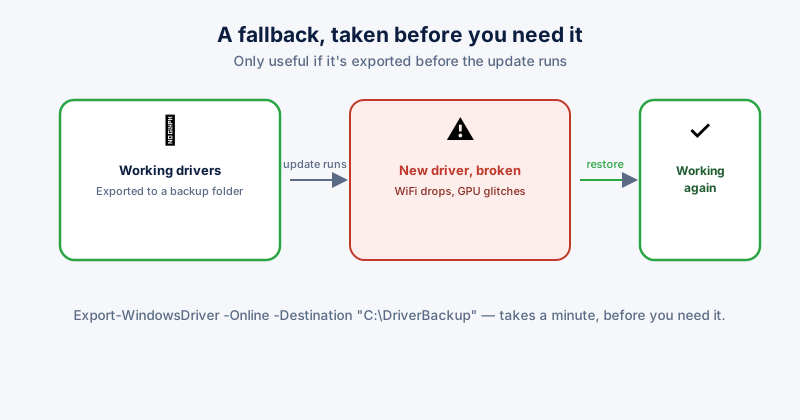
Major Windows feature updates occasionally replace a currently-working driver with a newer one that's buggy, incompatible with specific hardware, or simply worse for a particular device — a WiFi adapter that drops connection, a printer that stops working, a GPU driver with new graphical glitches. When this happens, having a backup of the driver that was actually working turns a frustrating troubleshooting session into a straightforward rollback.
Backing up your current drivers
Windows has a built-in way to export every currently installed driver, via PowerShell:
- Open PowerShell as Administrator
- Run: Export-WindowsDriver -Online -Destination "C:\DriverBackup"
- This exports every third-party driver currently installed to that folder — keep it somewhere safe, ideally not on the same drive being updated
This exports drivers already installed and working — it's not useful after a problem has already occurred, since by then the broken driver may already have overwritten the one you'd want backed up. The backup only helps if it's taken before the update runs.
Restoring from the backup if something breaks
- Open Device Manager, find the device with the problem
- Right-click it → Update driver → Browse my computer for drivers
- Point it at your backup folder — Windows will find and offer the compatible driver from before the update
- Alternatively, right-click the device → Properties → Driver tab → Roll Back Driver, if that option is available (it's only present for a limited time after a driver change, and isn't always available for every update path)
Which drivers matter most to back up
- WiFi and network adapters — a broken network driver is especially frustrating since it can cut off your ability to download a fixed driver from the internet on the same machine
- GPU drivers, especially on a system where gaming or creative work performance matters
- Printer and scanner drivers for hardware that's inconvenient to reconfigure from scratch
- Any driver for older or less common hardware, where a replacement compatible driver might not be readily available if the update-supplied one doesn't work
The broader habit worth having
This is the same principle as backing up files before a major change, applied to drivers specifically — most updates go fine, but the ones that don't are far less stressful with a known-working fallback ready, rather than hunting down the right driver version from a manufacturer's site after the fact, sometimes without working internet if it's the network driver itself that broke.
ETA System Doctor's Driver Backup Before Update exports every installed driver to a folder automatically ahead of a major update, so the fallback is already sitting there ready if something needs rolling back, without needing to remember the PowerShell command yourself beforehand.