Disk Cleanup Windows 11 is the first thing most people try when the system drive fills up, and it does work — for the handful of categories it actually checks. The problem is how much of a modern drive it never looks at, which is why so many people run it, free a gigabyte or two, and are back to a full drive within weeks.
What Disk Cleanup in Windows 11 actually covers
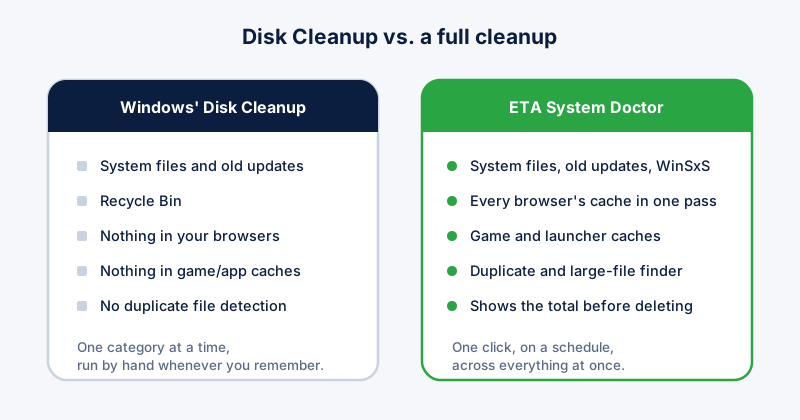
Open Settings, then System, then Storage, and either use Storage Sense or click "Temporary files" directly — that's the modern equivalent of the old cleanmgr tool. It covers Windows Update leftovers, the Recycle Bin, delivery-optimization files, and a handful of system temp folders. Useful, and worth doing, but narrow.
What it never touches
- Browser cache and site data — Chrome, Edge, and Firefox each keep their own, and Disk Cleanup doesn't open any of them
- Game and launcher caches — Steam, Epic, and shader caches routinely run into tens of gigabytes
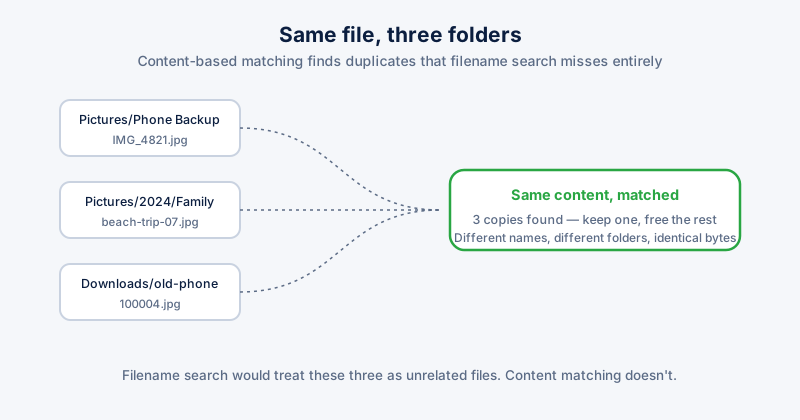
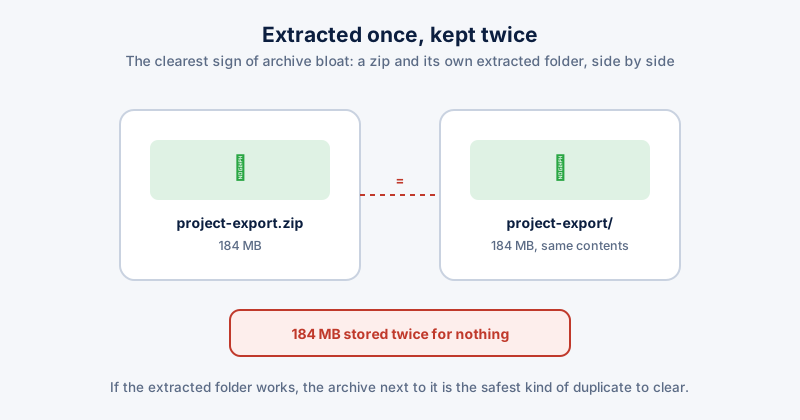
- Duplicate files — the same photo or download saved in three folders counts as three full copies
- Large forgotten files — an old ISO or video buried three folders deep in Downloads
- Developer junk — node_modules, Docker layers, build artifacts, if you do any development work at all
This is exactly the gap ETA System Doctor's Deep System Cleanup closes. It scans every one of these categories in a single pass — browsers, games, duplicates, large files — and shows you the total before anything is removed, instead of leaving you to hunt through five different tools for the space Disk Cleanup left behind.
Running it properly
- Open Settings, then System, then Storage.
- Click "Temporary files" and let it scan.
- Tick the categories you want — leave "Downloads" unticked unless you're sure.
- Click Remove files.
- On older builds, press Win + R, run "cleanmgr", then "Clean up system files" for the same result.
Why the drive fills up again anyway
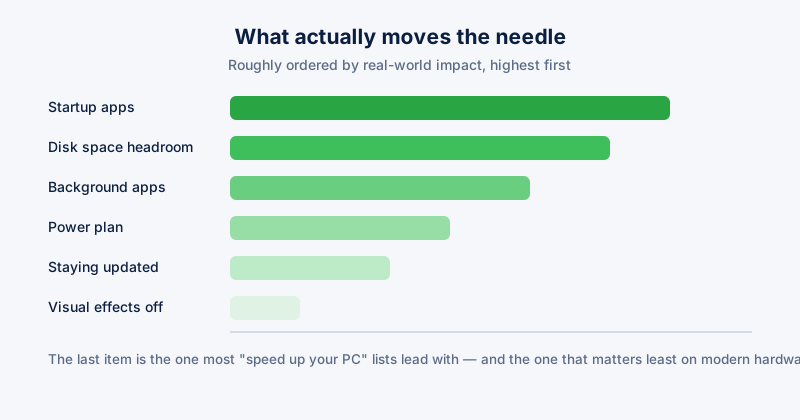
Because the categories Disk Cleanup skips are exactly the ones that grow fastest. A browser cache rebuilds within days. A game's shader cache regrows on every driver update. Duplicate downloads accumulate one file at a time until they're worth gigabytes. None of that is touched by the one tool most people think of as "cleaning the disk", which is why manually running Disk Cleanup every few weeks never actually solves the underlying problem.
The one-click fix
This is the difference between a tool that clears what Microsoft decided to expose, and one built to actually solve the problem. ETA System Doctor's Deep System Cleanup finds every category above in one pass — system leftovers, every installed browser, every game launcher, duplicate and oversized files — and shows the exact total before you click anything. No switching between five different settings pages, no remembering which browser you haven't cleared in months.
Pro also adds scheduled automatic cleanup, so the space doesn't creep back the way it does after a one-off manual pass, plus the Duplicate & Large File Finder and Game & App Cache tools as part of the same suite. Run it once, see the honest number, and the "why is my drive full again" question stops coming back — that's the whole point of buying it instead of doing this by hand every month.