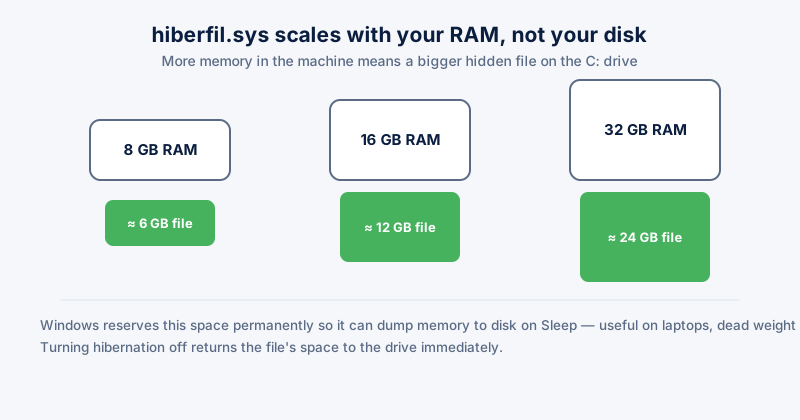
hiberfil.sys is a hidden file at the root of your C: drive, sized at roughly 75% of your installed RAM, and it sits there permanently whether you ever use it or not. On a 32 GB machine that is over 20 GB of disk space reserved before you have installed a single program. Hibernation file cleanup means understanding what that file is for, deciding whether you actually need it, and reclaiming the space if you don't.
What hiberfil.sys actually does
Hibernation writes the entire contents of RAM to disk before the machine powers off completely, so that turning it back on restores exactly what you had open — unlike Sleep, which keeps RAM powered and simply uses very little energy. Because it has to fit everything currently in memory, the file is provisioned in advance at close to your full RAM size, permanently, whether or not you have hibernated even once.
Do you actually need it
- Laptops that lose power on standby — useful, since hibernation survives a battery running flat where Sleep does not
- Windows Fast Startup — uses a partial hibernation of the kernel session to boot faster; disabling hibernation also disables this
- Most desktops — rarely useful, since they stay plugged in and Sleep already covers the common case
- Laptops that are never left unplugged for long — the risk hibernation protects against essentially doesn't apply
How to disable it and reclaim the space
- Search "Command Prompt" in the Start menu, right-click it, and choose "Run as administrator".
- Type powercfg /hibernate off and press Enter.
- hiberfil.sys disappears immediately and the space is returned to the drive — no restart required.
This also turns off Fast Startup, since it relies on the same mechanism. If your PC boots noticeably slower afterward, that trade-off is why — re-enable with powercfg /hibernate on if it matters more than the disk space.
ETA System Doctor's Windows.old & Hibernation cleanup finds hiberfil.sys and old Windows installation leftovers together, shows exactly how much space each is holding, and reclaims them safely in one click — no Command Prompt, no risk of typing the wrong flag.