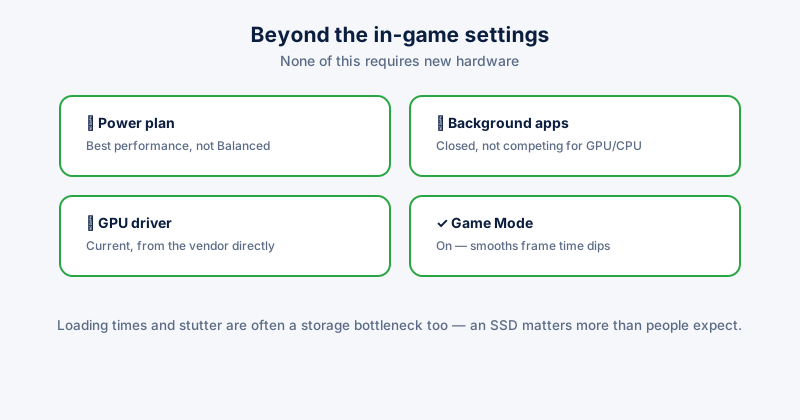
Lowering in-game settings is the obvious lever for better frame rates, but a lot of the performance headroom on a gaming PC sits outside the game entirely — in what else is running, how the system is configured, and whether the GPU driver is actually current. None of it requires new hardware.
Power plan
Windows' Balanced power plan is tuned to save energy, which on a desktop with no battery to protect is pure downside. Settings → System → Power & battery → Power mode, set to Best performance. On a laptop, this matters most while plugged in — on battery, it'll drain faster in exchange for the same performance gain.
Background apps eating GPU and CPU
Browsers with hardware-accelerated video playing in a background tab, chat overlays, and recording software all compete for the same GPU and CPU the game is trying to use. Task Manager, sorted by CPU or GPU, will show exactly what's actually running during a session — close anything you don't need open while playing.
GPU drivers
Graphics driver updates frequently include game-specific performance optimizations, sometimes for titles released after the previous driver version. Running a driver that's more than a few months old means missing out on those specific improvements, independent of anything else. Check the driver date in Device Manager or your GPU vendor's own update tool, and update if it's been a while.
Skip third-party "driver updater" tools that scan your whole system and update everything at once — for GPU drivers specifically, get them directly from NVIDIA, AMD, or Intel's own site or app. A bad or mismatched driver install is one of the more common causes of new graphical glitches after an "update."
Windows Game Mode
Settings → Gaming → Game Mode. When on, Windows deprioritizes background tasks and driver-related maintenance while a game is running full-screen, which can smooth out frame time consistency (fewer sudden dips) more than it raises the raw average frame rate. It's on by default on most systems, worth confirming rather than assuming.
Storage matters more than people expect
Loading times, texture streaming stutter, and level-load pop-in are frequently a storage bottleneck, not a GPU one — installing actively-played games on an SSD rather than a hard drive, and keeping that drive from running nearly full, both have a real, direct effect that no in-game setting can substitute for.
What to skip
- Aggressive "gaming optimizer" tools that disable large numbers of Windows services — the actual gains are usually marginal, and disabled services occasionally cause other problems weeks later, hard to trace back to the cause
- Overclocking as a first step — real gains exist, but it's the highest-effort, highest-risk item on this list; worth doing after the free, safe changes above, not before
ETA System Doctor's Game & App Cache clears out Steam, Epic, and Discord clutter that accumulates over time, and its Auto Speed Boost applies the performance power plan and background-app cleanup described above in one pass, rather than working through Settings and Task Manager by hand before every session.