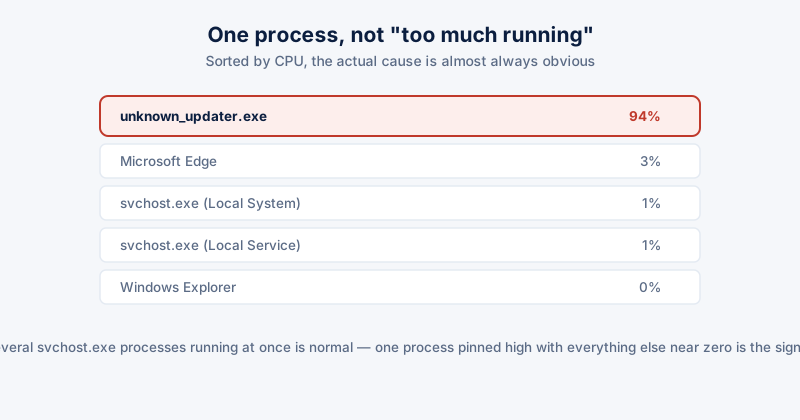
High CPU usage almost always has one specific cause, not a vague accumulation of "too much running." The fastest way to a fix is finding that one process, not guessing at general slowdown remedies that may not touch the actual problem at all.
Finding the actual process
- Open Task Manager (Ctrl+Shift+Esc)
- Click the CPU column header to sort by usage, highest first
- Let it sit for 10-15 seconds — a process spiking briefly during normal work is not the same as one pinned high continuously
- Note the process name, and check the Details tab for the full file path if the name alone isn't recognizable
Common legitimate causes
- Windows Update or Windows Defender running a scan — genuinely CPU-intensive, but temporary. Usually resolves within 10-30 minutes.
- A browser with many tabs open, especially tabs auto-refreshing content or playing video — check individual tab CPU usage in Chrome/Edge's own Task Manager (Shift+Esc inside the browser)
- Search indexing (SearchIndexer.exe) after a large number of new files were added — temporary, catches up on its own
- A specific application doing real work — video export, a large compile, a game — that's simply using the CPU for what it's meant to do
When it's actually a problem
- A process at high CPU with no clear reason, especially one you don't recognize, sustained well past when any update or scan should have finished
- A single instance of a normally-lightweight process — several svchost.exe processes running is completely normal, but one persistently pinned at high usage while others sit near zero is worth investigating specifically
- High CPU that started right after installing something new — a strong signal pointing at that specific install as the cause
svchost.exe hosts multiple Windows services and legitimately runs as several separate processes at once — seeing many of them in Task Manager is normal. It's a single one running unusually hot, not the number of them, that's worth a closer look.
What to do once you've found it
- If it's a recognizable app doing real work, that's expected — no action needed beyond waiting or closing it if you don't need it running
- If it's unrecognized or you're not confident what it is, search the exact process name before ending it — some Windows system processes look unfamiliar but are legitimate
- If it's a background app you don't need running constantly, check Task Manager's Startup apps tab to see if it's set to launch automatically and disable that if so
- If a scan is genuinely still running (Windows Defender, Windows Update), the correct fix is patience, not intervention — interrupting a scan or update mid-way tends to cause it to restart from the beginning
ETA System Doctor's PC Health Score surfaces the same CPU signal as part of its six-check overview, and its Instant RAM Boost addresses the closely related case where memory pressure — not the CPU itself — is what's actually making everything feel sluggish, which Task Manager's CPU column alone won't show you.