"Which files can I safely delete on Windows?" is the wrong question to answer by guessing — a file's location tells you almost everything about whether it's safe to remove. Here's the breakdown by risk, not by size.
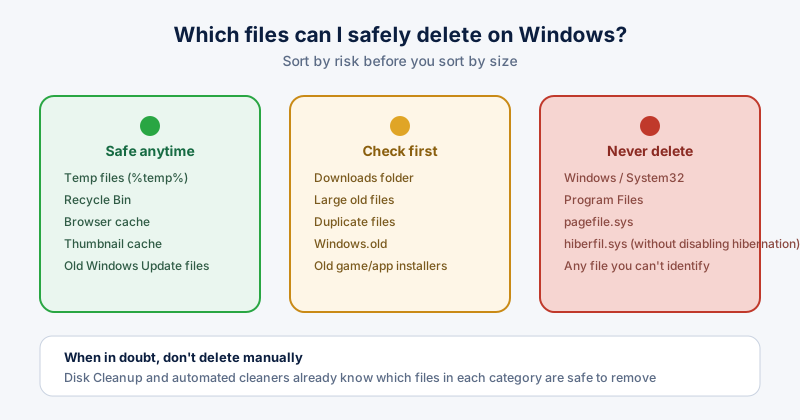
Safe to delete anytime
- Temp files in %temp% — regenerated automatically by whatever needs them
- Recycle Bin contents, once you've confirmed nothing in it is needed
- Browser cache — the first page load after clearing it is just slightly slower
- Thumbnail cache — Windows rebuilds thumbnails the next time you view a folder
- Old Windows Update installation files, once an update has finished successfully
Worth checking before you delete
- Your Downloads folder — often full of installers and files you already used once
- Large old files you don't remember opening in the last year
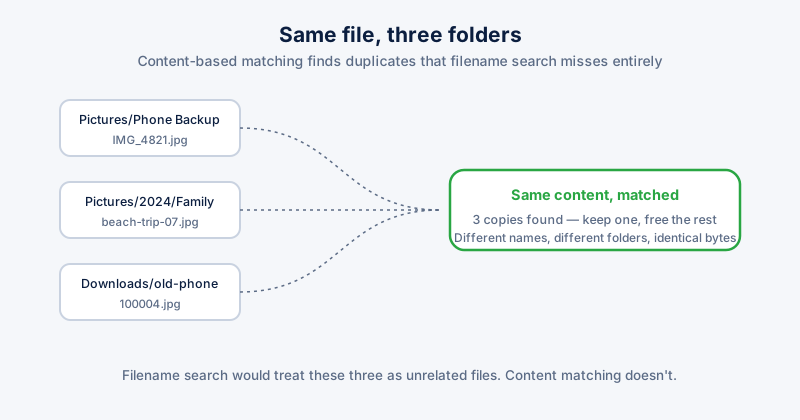
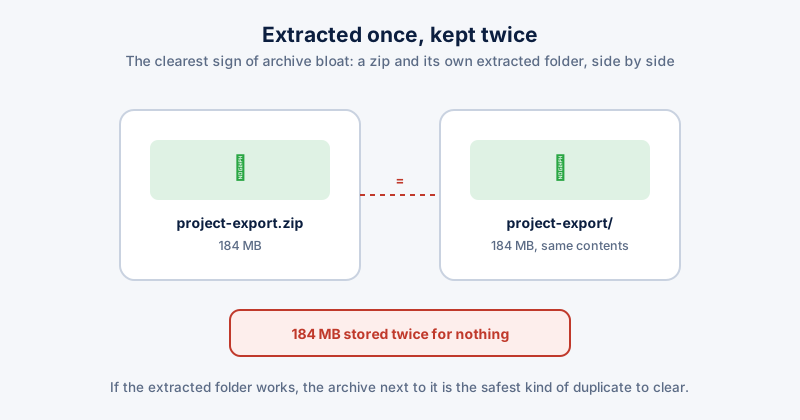
- Duplicate files scattered across folders from repeated saves or backups
- The Windows.old folder — a full copy of your previous Windows install
- Old game or software installers you already ran
Windows.old is only kept for about 10 days after an upgrade before Windows deletes it automatically, and it can hold 20–30 GB — safe to remove yourself sooner if you're not planning to roll back.
Never delete these
- Anything inside the Windows or System32 folders
- Program Files or Program Files (x86), even for software you don't use — uninstall it properly instead
- pagefile.sys — Windows' virtual memory file
- hiberfil.sys — delete this only by disabling hibernation first with "powercfg /hibernate off", never by hand
- Any file you can't identify or connect to software you installed deliberately
The fastest safe way to check
Windows 11's built-in Disk Cleanup and Storage Sense already know which temp, cache, and update files in each category are safe to remove — they won't touch anything in the "never delete" list. An automated cleaner covers the same ground with less clicking, and flags large or duplicate files for you to review instead of guessing by folder name.